
Getting Started

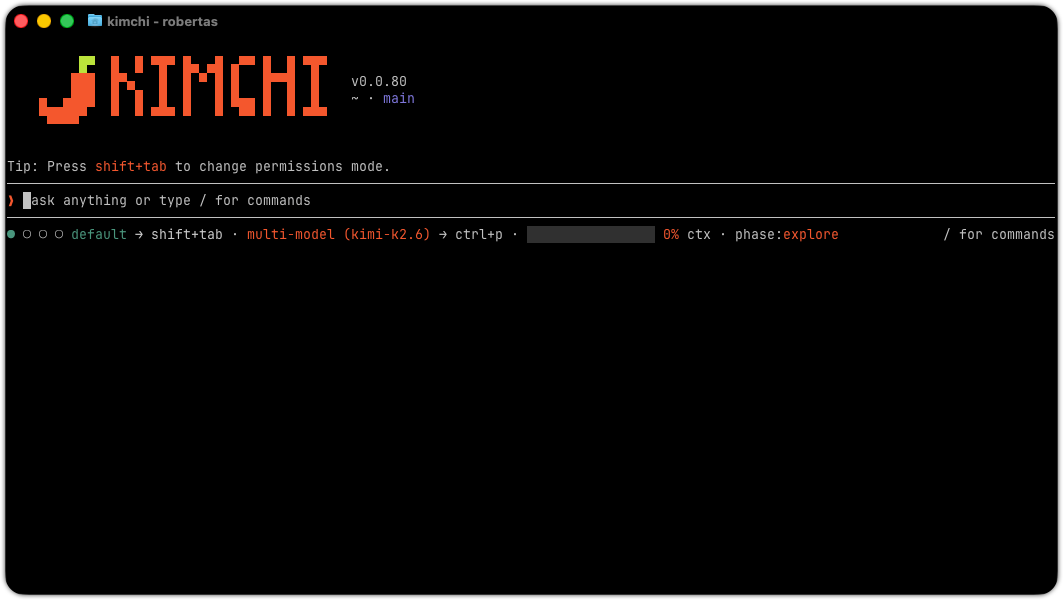
The Kimchi coding harness is an autonomous AI agent that writes, reads, edits, and reasons about your code — with built-in multi-model orchestration, phase tracking, and cost attribution.

Get up and running

1. Install

macOS / Linux

curl -fsSL https://github.com/getkimchi/kimchi/releases/latest/download/install.sh | bash

Windows (WSL)

Kimchi requires WSL (Windows Subsystem for Linux). Open PowerShell as administrator and run:

wsl --install

Restart PowerShell when prompted, then open WSL:

wsl

Update your packages:

sudo apt-get update

Then install Kimchi:

curl -fsSL https://github.com/getkimchi/kimchi/releases/latest/download/install.sh | bash

2. Get your API key

Go to app.kimchi.dev/settings and click Create API key. Copy the key — the CLI will prompt for it on first run.

3. Pick your path

Run kimchi to launch the full coding harness:

kimchi

If no API key or authenticated provider is configured, the CLI presents a login method selector on startup:

  • Use a Kimchi account — opens your browser to authenticate with Kimchi and saves your API key automatically.
  • Use a subscription — lets you authenticate with a supported subscription provider (e.g. GitHub Copilot).

Authentication must succeed before the harness continues. If you cancel the login selector, the harness shuts down cleanly. Once authenticated, a session mode picker appears with two options:

  • Try a /ferment workflow — the agent breaks your task into phases, self-evaluates its output, and delivers with minimal interruptions.
  • Just chat and code — starts the standard chat mode where you describe tasks and the agent handles it. Type /help during a session to see all available keyboard shortcuts and slash commands.

The picker only appears once. After you make a selection (or dismiss it), subsequent launches skip straight to the prompt. You can also type /login in the harness at any time to authenticate — choose to log in via your browser, enter a Kimchi API key directly, or use a subscription. On success, your API key is saved and the active model is set automatically. You can start a Ferment session at any time with the /ferment command for autonomous multi-session projects.

You can also provide an API key manually via the KIMCHI_API_KEY environment variable or by creating one at app.kimchi.dev/settings.

Read on if you want to understand what's happening under the hood.

What Is a Coding Harness?

A coding harness is an AI agent that can write, read, edit, and reason about your code autonomously. You describe a task in plain English — "add error handling to the API routes", "refactor this module to use async/await", "write tests for the auth service" — and the agent executes it: reading files, writing code, running commands, checking its own output.

This is different from AI code completion (Copilot-style inline suggestions). A harness handles multi-step tasks with minimal hand-holding. You don't autocomplete one line at a time — you hand over a job and the agent does it.

Why Kimchi Instead of Claude Code or Others?

Claude Code / CursorOther API providersKimchi
Rate limitsYes — sessions cut off mid-taskVariesNo rate limits
Cost$100–200/month subscriptionsPay-per-token, no routing intelligencePay-per-token, smart routing cuts costs
Model lock-inAnthropic-onlySingle model per requestAutomatically picks the right model per task
Data residencyAnthropic's / provider's infraProvider's infraYour cluster (self-hosted) or Kimchi's GPUs
Claude modelsDirect from AnthropicNot availableVia Kimchi proxy — same models, no lock-in

The key differentiator: orchestrated multi-model routing.

Kimchi doesn't just swap one model for another. The harness runs an orchestrator that classifies your task, breaks it into phases, and assigns each subtask to the right model from its roster. A planning step gets a reasoning-capable model; a bulk code-generation step gets a fast, high-throughput executor. You don't pick the model — the harness does.

Two Ways to Use Kimchi

Mode 1: The Kimchi Harness (kimchi)

Run the full Kimchi coding harness:

kimchi

This launches kimchi — a terminal-based coding agent with:

  • Multi-model orchestration (on by default): the agent classifies your task, assigns phases, delegates subtasks to specialised agents
  • Phase tracking: work is tagged as explore → plan → build → review → research for analytics and cost attribution
  • Cost tagging: every request is tagged by model and phase; add custom tags for project/team attribution
  • Session persistence: sessions (including agent runs) are saved to disk and fully recoverable

When to use: New tasks, complex tasks, anything where you want the full autonomous experience.

Mode 2: Configure Your Existing Tool (kimchi setup)

Already using Claude Code, Cursor, OpenCode, Cline, or another tool? Keep your workflow and just swap the backend:

kimchi setup

The interactive wizard will:

  • Authenticate you via the browser if no API key is configured
  • Install RTK for token-optimized bash output (if not already installed)
  • Enable telemetry (on by default; opt out with kimchi config telemetry off or KIMCHI_TELEMETRY_ENABLED=0)
  • Install superpowers skills

Then run kimchi setup-tools to:

  • Detect installed AI tools on your machine
  • Let you pick which tools to configure
  • Write the config files

When to use: You're happy with your current tool's UX and just want it to run on Kimchi's models instead of Anthropic/OpenAI.

Supported tools:

ToolConfig written
Claude Code~/.claude/settings.json
OpenCode~/.config/opencode/opencode.json
Codex CLI~/.codex/.env
Cursorstate.vscdb (SQLite)
WindsurfglobalStorage/storage.json
Zed~/.zed/settings.json
Cline~/.cline/data/globalState.json
OpenClaw~/.openclaw/openclaw.json
📘

kimchi setup preserves your existing tool configuration — it adds the Kimchi provider without overwriting anything. You can undo by removing the kimchi provider block from the relevant config file.

Key Features

Multi-Model Orchestration

By default, kimchi runs in multi-model mode: an orchestrator agent classifies each task and delegates subtasks to specialised models based on six roles:

RoleDefault ModelResponsibility
Orchestratorkimi-k2.6Runs the main loop, delegates work
Plannerkimi-k2.6Designs the approach, writes specs
Builderminimax-m2.7Code implementation
Reviewerminimax-m2.7Code review
Explorernemotron-3-super-fp4Codebase exploration, reading files, research
Judgeclaude-opus-4-6Ferment verification and grading

This happens automatically — you just describe the task. The orchestrator picks the right role for each subtask and delegates to the assigned model.

Configuring Model Roles

Use the /multi-model command during a session to interactively change which model is assigned to each role:

/multi-model

The command shows the current role assignments and lets you select from available models or enter a custom provider/model-id string.

Or cycle models with ctrl+p during a session — the cycle includes all available models plus an "orchestration" entry. Picking "orchestration" enables multi-model mode; picking any concrete model disables it. The footer shows orchestration when multi-model mode is active, or the concrete model name otherwise.

You can also configure roles directly in ~/.config/kimchi/harness/settings.json:

{
  "modelRoles": {
    "orchestrator": "anthropic/claude-sonnet-4-5",
    "builder": "anthropic/claude-sonnet-4-5",
    "reviewer": "kimchi-dev/minimax-m2.7",
    "explorer": "kimchi-dev/nemotron-3-super-fp4",
    "judge": "kimchi-dev/claude-opus-4-6"
  }
}

Only include the roles you want to override — omitted roles use the defaults. Model references use the format provider/model-id (e.g. kimchi-dev/kimi-k2.6, anthropic/claude-sonnet-4-5).

To switch to single-model mode, use ctrl+p to cycle to a concrete model or open the /model picker and select one. To re-enable multi-model, cycle with ctrl+p to the "orchestration" entry or select it from the /model picker. You can also start in single-model mode by passing --model <provider>/<id> on the command line.

The selected mode (single-model or multi-model) is persisted across sessions in ~/.config/kimchi/harness/settings.json.

When to use single-model: Simple one-shot tasks where you want direct, fast output without orchestration overhead. In single-model mode, the agent handles tasks directly but can still delegate to subagents using the Agent tool — delegation to the same model is allowed without asking, while delegation to a different model requires your explicit approval.

Phase Tracking

The harness tracks which phase of work it's in and tags every LLM request accordingly. Phases appear in the footer (e.g. ↳ build) and are included in every request tag for cost reporting.

PhaseDescription
exploreLocal codebase: reading files, tracing imports, understanding code structure
planDesigning, breaking down tasks, writing specs
buildWriting, modifying, or refactoring code
reviewVerifying correctness, analysing output
researchExternal sources: web docs, library APIs, version changelogs

The explore phase includes an exploration guard that prevents the agent from getting stuck in read-only loops. If the agent spends too many consecutive read-only turns without taking action, the harness automatically steers it to take a concrete next step — run a targeted test, make an edit, write a plan, or ask the user a question. The guard only counts turns that use read-only tools (file reads, grep, LSP queries); turns that use bash, write tools, or neutral tools like set_phase reset the streak. The guard is automatically suppressed during ferment scoping, where deep exploration is expected.

Thinking Steps

When the model is reasoning, the harness shows a thinking block. Toggle between collapsed and expanded views with alt+t, or use the /thinking-steps command. In collapsed mode, the block displays a summary label (e.g. "Thought for 5s"). In expanded mode, the full thinking content is visible.

You can also save your preference per-project or globally:

/thinking-steps project collapsed
/thinking-steps global expanded

Interrupting the Agent

While the agent is working, press Escape or Ctrl+C to abort the current turn. The agent stops immediately and returns control to the prompt.

Tool Output

Tool results (file reads, bash output, grep matches, diffs) are shown in a compact collapsed view by default. Each tool header displays a live elapsed-time timer showing how long the tool has been running; once the tool completes, the timer freezes at the final duration. When the agent runs multiple tools in a row, consecutive tool calls are collapsed into a single summary line (e.g. ✓ read 3 files, listed 2 directories, searched for 1 pattern) with an elapsed timer on the group header as well. Press ctrl+o to expand the group into individual tool headers, and ctrl+o again to re-collapse. Each individual tool can also be expanded to show its full output.

Failed tools and unknown/MCP tools break the group and render individually.

Model Switching

To switch models mid-session, use /model to open the model picker or ctrl+p to cycle through available models. Both include multi-model as a selectable option alongside regular models.

/model

You can also cycle models with ctrl+p. The cycle includes all available concrete models plus an "orchestration" entry at the end. Selecting "orchestration" enters multi-model mode; selecting a concrete model exits it. In multi-model mode, the orchestrator is always kimi-k2.6 and the harness routes subtasks to the best-fit model automatically.

Model Switching Guards

Switching models mid-conversation is protected by automatic compatibility checks:

  • Context overflow: If the current conversation exceeds the target model's context window, the switch is blocked. Run /compact to reduce context size, then retry.
  • Vision compatibility: If the conversation contains images and the target model does not support vision, the switch is blocked. Run /strip-images to replace images with AI-generated text descriptions, then retry.

When cycling models with ctrl+p, incompatible models are automatically skipped. A notification lists which models were skipped and why. If no compatible model is available, a warning explains what to do.

/strip-images

When your conversation contains images and you want to switch to a non-vision model, run:

/strip-images

This uses a vision-capable model to generate concise descriptions of each image, then replaces the image blocks with text — so the conversation continues without data loss and non-vision models become available.

Quick Reference

# Install (Homebrew, macOS)
brew install getkimchi/tap/kimchi
# Install (curl, macOS / Linux)
curl -fsSL https://github.com/getkimchi/kimchi/releases/latest/download/install.sh | bash
# Launch the harness
kimchi
# Launch in plan mode (read-only planning)
kimchi --plan
# Launch with a session name
kimchi --name "my task"
# Initial setup (auth, RTK, skills)
kimchi setup
# Configure an existing tool
kimchi setup-tools
# Update to latest
kimchi update
# Manage resources (hooks, tools, extensions, plugins)
kimchi resources list
# Show version
kimchi --version
# Enable experimental features
kimchi --enable-experimental-features
# Debug mode
kimchi --debug

When to Use Which Mode

SituationRecommended
You want to just try itkimchi (harness, default)
You have a complex multi-step coding taskkimchi with multi-model on
You want fast, direct code outputkimchi --model <provider>/<id> (single-model mode)
You want to run the harness in dangerous mode with all permissions grantedkimchi --yolo
You want to plan before executing — explore the codebase read-only and produce a structured plankimchi --plan
You live in Claude Code and don't want to change your workflowkimchi setup then kimchi setup-tools → configure Claude Code
You use Cursor / Windsurf / Clinekimchi setup then kimchi setup-tools → configure your tool
You need to update the harness or the installerkimchi update → updates packages, the harness, the installer, and superpowers skills
You want to label sessions for easy identificationkimchi --name "feature X" or /rename mid-session
You have a multi-session project that benefits from structured planning and grading/ferment — autonomous project mode

Feedback & Issues

Use the /bug command during a harness session to open a pre-filled GitHub issue form directly from the prompt:

/bug Something is broken

The command auto-fills the bug report template with your harness version and any description you provide. In TUI mode it opens your browser; in headless mode it prints the URL to stdout.

You can also file issues manually at github.com/getkimchi/kimchi or ping the team on Discord here.

Kimchi Code is an open source project — contributions are welcome.