
Connect MCP Servers
This guide explains how to connect third-party MCP (Model Context Protocol) servers to Kimchi. MCP servers extend the agent with external tools — browser automation, documentation lookups, memory systems, code-graph analysis, and anything else that exposes tools over the MCP protocol.
Before you start
Before you connect an MCP server, ensure:
- Kimchi is installed and running — see Getting Started if you haven't set it up yet.
- The MCP server's prerequisites are met — each server has its own dependencies (runtime packages, API keys, pre-generated data files). Check the server's own documentation before adding it to Kimchi.
- You know the server's transport type — Kimchi supports three MCP transports:
- stdio — the server runs as a local process. Configured with
commandandargs. - SSE — the server exposes a Server-Sent Events endpoint. Configured with
urlpointing to the SSE path (e.g.http://localhost:3845/sse). - Streamable HTTP — the server exposes a standard HTTP endpoint. Configured with
urlpointing to the MCP path (e.g.http://localhost:8931/mcp).
- stdio — the server runs as a local process. Configured with
Import existing MCP servers
If you already have MCP servers configured in another coding tool (Claude Code, Cursor, etc.), kimchi setup detects and imports them automatically during initial setup. Imported servers are written to ~/.config/kimchi/harness/mcp.json alongside any servers you add manually. After import, open /mcp in Kimchi to verify they appear and enable the ones you want to use.
Add an MCP server manually
Open ~/.config/kimchi/harness/mcp.json in your editor. Add a new entry under mcpServers with a name of your choice.
For a stdio server (local process):
{
  "mcpServers": {
    "my-server": {
      "command": "npx",
      "args": ["-y", "@example/mcp-server@latest"]
    }
  }
}
For an HTTP server (remote or locally running service):
{
  "mcpServers": {
    "my-server": {
      "url": "http://localhost:8931/mcp"
    }
  }
}
If the server requires environment variables (API keys, configuration), add an env block:
{
  "mcpServers": {
    "my-server": {
      "command": "npx",
      "args": ["-y", "@example/mcp-server@latest"],
      "env": {
        "API_KEY": "your-key-here"
      }
    }
  }
}
Optional properties
| Property | Default | Description |
|---|---|---|
directTools | false | Controls which tools are injected directly into the model's tool list at session start. Set to true to inject all of the server's tools, or pass an array of tool names (e.g. ["browser_navigate", "browser_snapshot"]) to inject only specific ones. When false, tools are available but the model must discover them through a search step at runtime. Each injected tool consumes a small number of tokens from the context window for its schema definition, so there is a minor per-session token cost proportional to the number of tools injected. For most servers this cost is negligible. |
lifecycle | "lazy" | Controls when Kimchi connects to the server. "lazy" connects on first use. "eager" connects at Kimchi startup, eliminating the cold-start delay on the first tool call at the cost of a slightly longer startup time. "keep-alive" maintains a persistent connection to the server across the session, reconnecting automatically if the server restarts. |
Activate the server
After editing mcp.json, activate the new server:
Restart Kimchi to pick up the config change
ctrl+c
kimchiCache the tool schema
Open the MCP manager with /mcp. Your new server appears in the list as (not cached). Select it and press ctrl+r to connect and cache the tool schema. Once cached, the server shows a tool count (e.g., my-server 12/12).
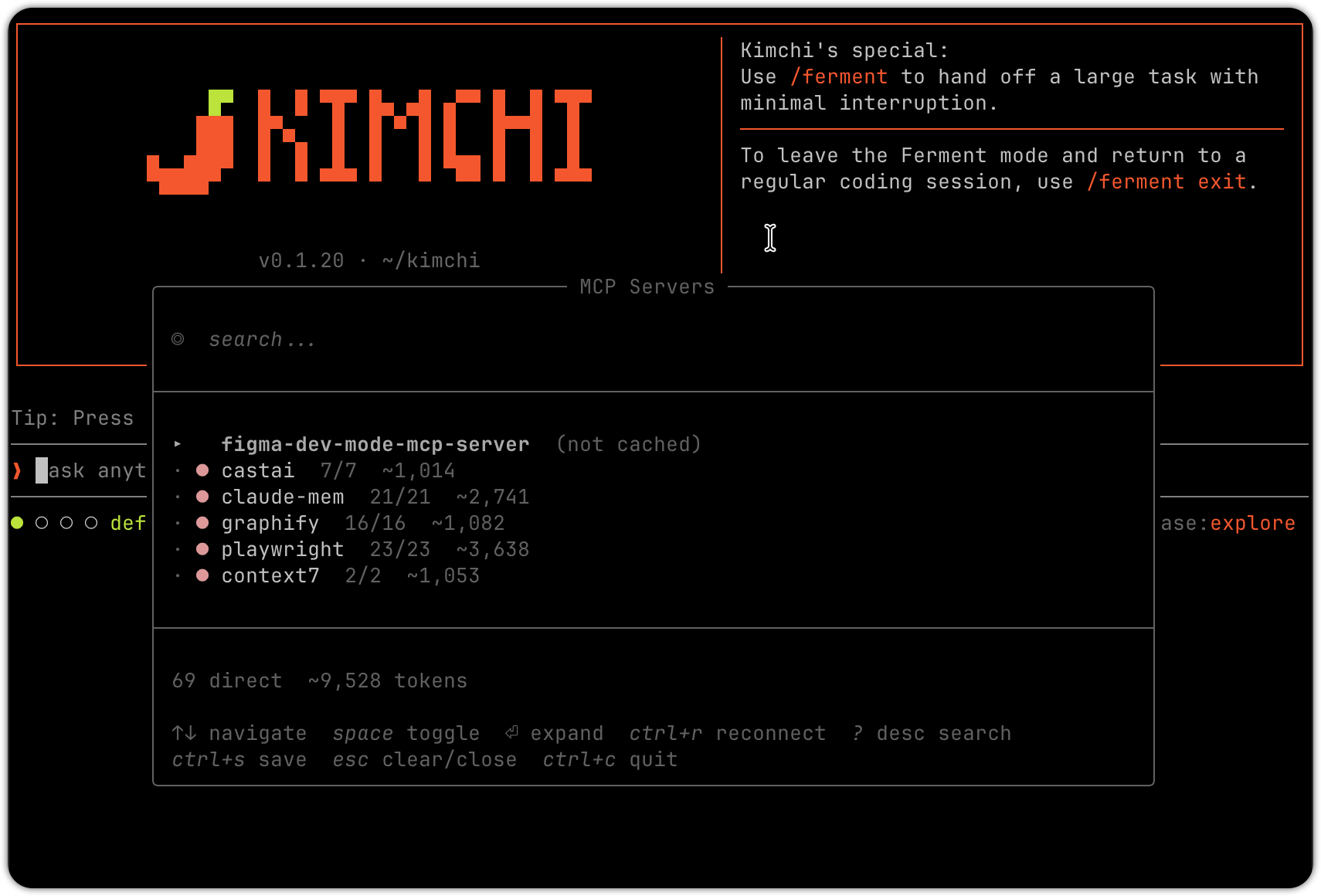
If
ctrl+rhas no visible effect, the server process is failing to start. See Troubleshoot connection failures below.
Enable the server and save
With the server selected in /mcp, press space to enable it, then ctrl+s to save.
Restart Kimchi to load the tools
Exit and relaunch Kimchi one more time. On startup, Kimchi confirms the active tools:
MCP: 23 direct tool(s) from my-server are now availableThe server's tools are now available to the agent.
MCP tools during Ferment planning
During Ferment scoping and planning phases, only read-only MCP tools are available to the agent. Write and destructive tools are blocked until the implementation phase begins, where full MCP access is restored.
A tool qualifies as read-only when either:
- The MCP server annotates it with
readOnlyHint: truein its tool annotations. - The server provides no annotations and the tool name starts with one of these prefixes:
get_,search_,list_,read_,fetch_.
If a server explicitly sets readOnlyHint: false, the tool is treated as a write tool regardless of its name.
When you search or describe tools with /mcp, read-only tools are marked with a [read-only] tag so you can see at a glance which ones are available during planning.
The name-based heuristic is a best-effort fallback. For reliable classification, set
readOnlyHint: trueexplicitly in the tool's annotations. If you control the MCP server, add the annotation directly. If you're using a third-party server, check whether the server already sets annotations — if not, consider opening an issue with the server maintainer.
Remove or disable an MCP server
To temporarily disable a server, open /mcp, select the server, and press space to toggle it off. Press ctrl+s to save and restart Kimchi.
To permanently remove a server, delete its entry from ~/.config/kimchi/harness/mcp.json and restart Kimchi.
Reuse Claude Code hooks
If you already have hooks configured for Claude Code (in ~/.claude/settings.json or a project-level .claude/settings.json), you can run them in Kimchi without rewriting them. The Claude Code hook adapter reads your existing hook configuration and executes those hooks during Kimchi sessions.
To enable it:
kimchi resources enable extensions.claude-code-hook-adapterRestart Kimchi after enabling. The adapter reads hooks from:
~/.claude/settings.json(user).claude/settings.json(project).claude/settings.local.json(local project)
Hooks run on the following events: PreToolUse, PostToolUse, SessionStart, PreCompact, PostCompact, UserPromptSubmit, Stop, StopFail, Notification, SubagentStart, SubagentStop, and SessionEnd. A PreToolUse hook that exits with code 2 blocks that tool call. Stop and StopFail hooks can return a {"decision":"block","reason":"..."} result to continue the run. Notification hooks fire on lifecycle notifications such as permission_prompt and agent_needs_input. All other hooks run for side effects only.
For tools that depend on Claude Code skills, enable the skill compatibility extension as well:
kimchi resources enable extensions.claude-code-skillsSee also
Updated about 2 months ago