

Tag sessions by project
Set default tags for a Kimchi Coding session from your environment, repository, or global config so you can report usage and cost by project.
A Kimchi Coding session can carry default tags so that every request it makes is attributed to a project, team, or any other dimension. Once sessions are tagged, the console's Usage and Analytics pages can break usage and cost down by those tags.
This guide shows how to define default tags for a session and how to report on the result. It is written for team leads and engineering managers who need per-project usage and cost numbers. For tag format rules, limits, and the query API, see Tags.
The tag values shown in this guide (
project:heist,team:capers, and the like) are examples only. Choose keys and values that match your own projects and teams.
Before you start
- The Kimchi CLI installed and authenticated. Default tags are resolved each time a session starts.
- A repository (or a parent directory covering several repositories) where you run Kimchi sessions.
How default tags are resolved
Kimchi resolves default tags from three sources, strongest first:
- Environment: the
KIMCHI_TAGSenvironment variable, comma-separated. Use this for temporary overrides or CI-specific behavior. - Project: the nearest ancestor
.kimchi/tags.jsonfrom the working directory. The lookup walks up the tree, so subdirectories of a repository pick up the repository-level file. - Global:
~/.config/kimchi/tags.json. Use this for personal or machine-level defaults.
The sources are combined into one resolved set. When the same key appears in more than one tier, the stronger tier's value replaces the weaker one. Two tags with the same key within a single tier can coexist, so one project file can carry several values for the same key.
Example: a project file defines
project:api, the global file definesproject:old, andKIMCHI_TAGSsetsproject:ci. The resolved set carriesproject:cibecause the environment tag replaces both weaker values for that key.
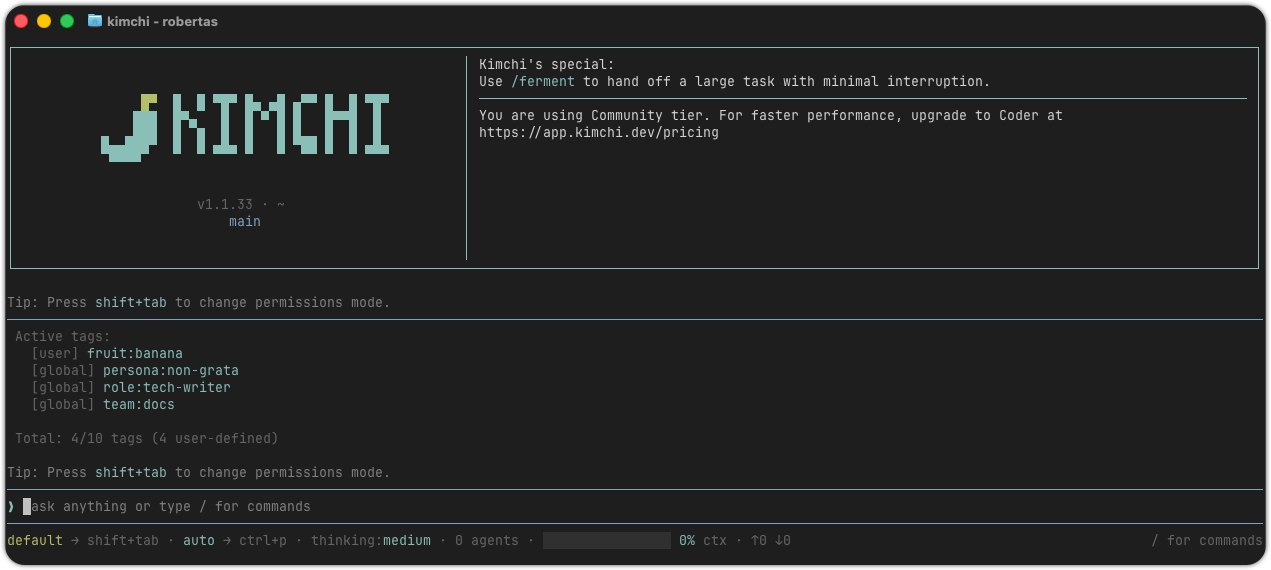
Default tags appear in /tags with their tier: [env], [project], or [global]. Tags you add during a session show as [user].
Define project tags in your repository
Create the tags file
Create .kimchi/tags.json at the repository root and set the tags this project should report under. Either create the file with this content:
{
  "tags": [
    "project:heist",
    "team:capers"
  ]
}
Or run (edit the values before committing):
mkdir -p .kimchi
cat > .kimchi/tags.json <<'EOF'
{
  "tags": [
    "project:heist",
    "team:capers"
  ]
}
EOF
Commit the file. To share one tag set across several repositories, place the file in a parent directory that covers them. Kimchi then picks up the nearest ancestor file from the session's start directory.
Trust the project
The first time Kimchi sees a repository with .kimchi/ configuration, it asks you to confirm that you trust it. Approve the prompt. Project tags load only from trusted projects, so a cloned repository cannot spoof attribution. In headless runs, pass --approve to force trust for that run.
Verify the resolved tags
Start a session in the repository and run /tags:
Active tags:
  [project] project:heist
  [project] team:capers
Total: 2/10 tags
Every request in this session now carries these tags.
Set personal defaults
Tags you want for yourself, regardless of repository, go in ~/.config/kimchi/tags.json. Set them to whatever you want attached to every session you run, for example your own persona or team:
{
  "tags": [
    "persona:non-grata"
  ]
}
To create it:
mkdir -p ~/.config/kimchi
cat > ~/.config/kimchi/tags.json <<'EOF'
{
  "tags": [
    "persona:non-grata"
  ]
}
EOF
Global tags apply to every session, but lose to project and environment tags with the same key.
Override tags for a session or CI run
For a temporary override, such as a specific experiment, a CI run, or a one-off task, set KIMCHI_TAGS before starting the session:
export KIMCHI_TAGS="experiment:casing-the-joint,project:api"Set the tags to whatever identifies that run. Environment tags are the strongest source while present and must be set per session. In CI, combine the variable with forced project trust so the run does not block on the trust prompt:
KIMCHI_TAGS="ci:true,team:capers" kimchi --approveUse
--approveonly for repositories you control. It forces trust for the project, so a cloned repository with a.kimchi/tags.jsoncould spoof tags on every request it makes.
Limits and failure behavior
| Rule | Behavior |
|---|---|
| 10 tags per request | The cap counts all resolved defaults plus session tags. /tags add fails with an error when the set is full. |
| Untrusted project | .kimchi/tags.json from a project you have not marked trusted is ignored. |
| Broken config | A malformed or unreadable tags.json is reported with a warning and skipped. The session continues without those tags. |
| Session changes | Once you run /tags add, /tags remove, or /tags clear, the session keeps its own tag set instead of the defaults. It is restored on resume. |
See Tags for the automatic model: and phase: tags, which are reserved and do not count toward the cap.
Report by project in the console
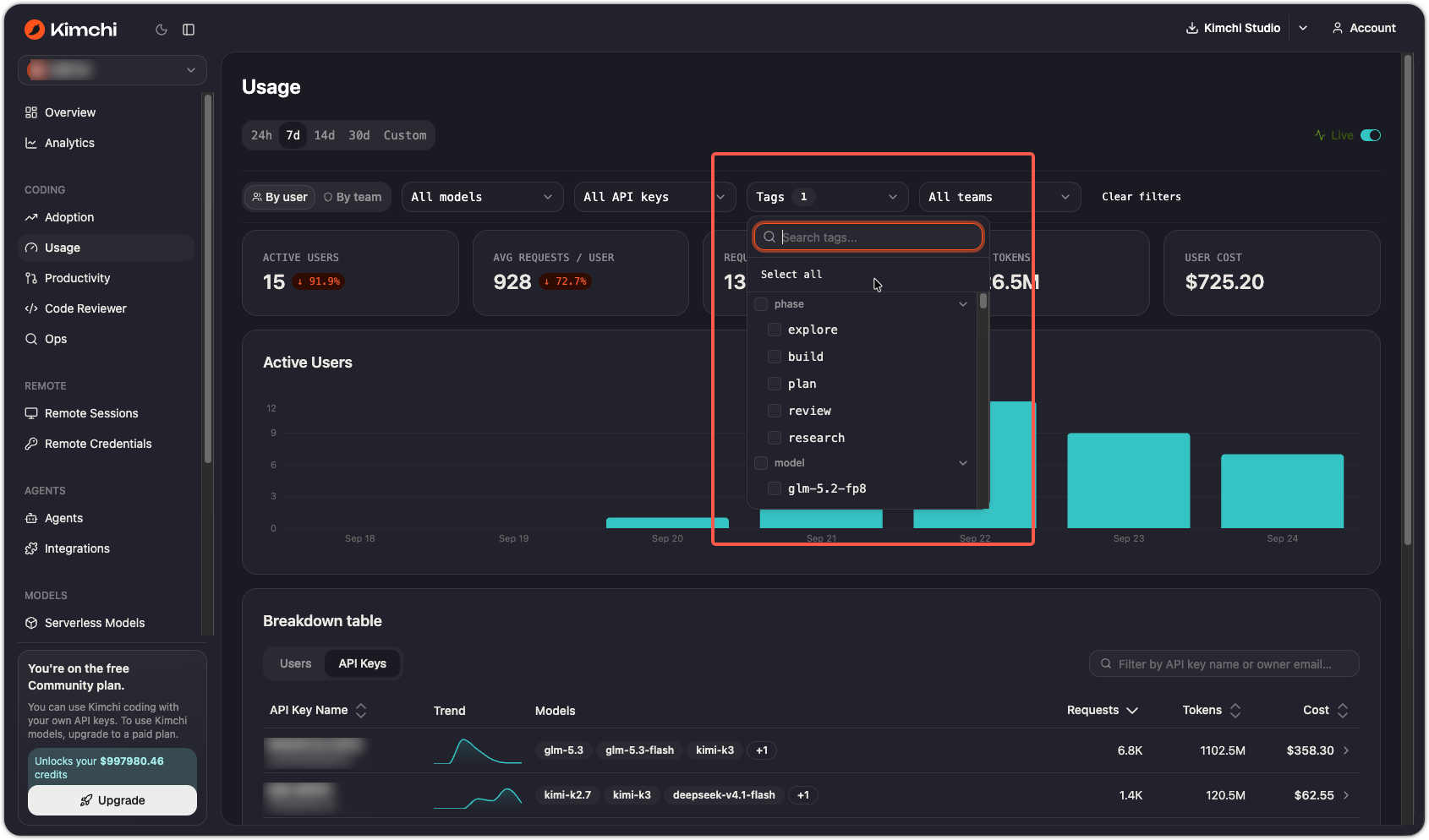
Every request carries its active tags, so the existing reporting pages answer per-project questions:
- Usage: filter by tag to see per-user and per-team rows for a project's requests, tokens, and cost.
- Analytics: filter by tag to track cost, request volume, latency, and error rate for a project.
- API: the tag query endpoints and CEL filter syntax pull per-project data programmatically.
For example, on the Usage page select your project:{name} tag in the Tags filter and set a 30-day range. Then sort by cost to see which project drives the most spend.
Quick reference
| Tier | Source | Typical use |
|---|---|---|
| Environment | KIMCHI_TAGS | Runtime or CI override |
| Project | .kimchi/tags.json | Repository-owned reporting defaults |
| Global | ~/.config/kimchi/tags.json | Personal or machine-level defaults |
| User | /tags add | Session-level additions |
See also
Updated 7 days ago