

Updating and uninstalling
How Kimchi Studio updates itself, and how to fully remove the app and its data from your machine.
Kimchi Studio updates itself automatically. Uninstalling removes the app but leaves your sessions, settings, and skills in a separate data directory, which you can also delete to reset Studio completely.
Updates
Kimchi Studio checks for and installs updates automatically in the background and applies them when you restart the app. You can also check manually and control automatic download under Settings → Updates:
- Check for updates: run a check on demand.
- Automatic download: toggle whether updates download in the background.
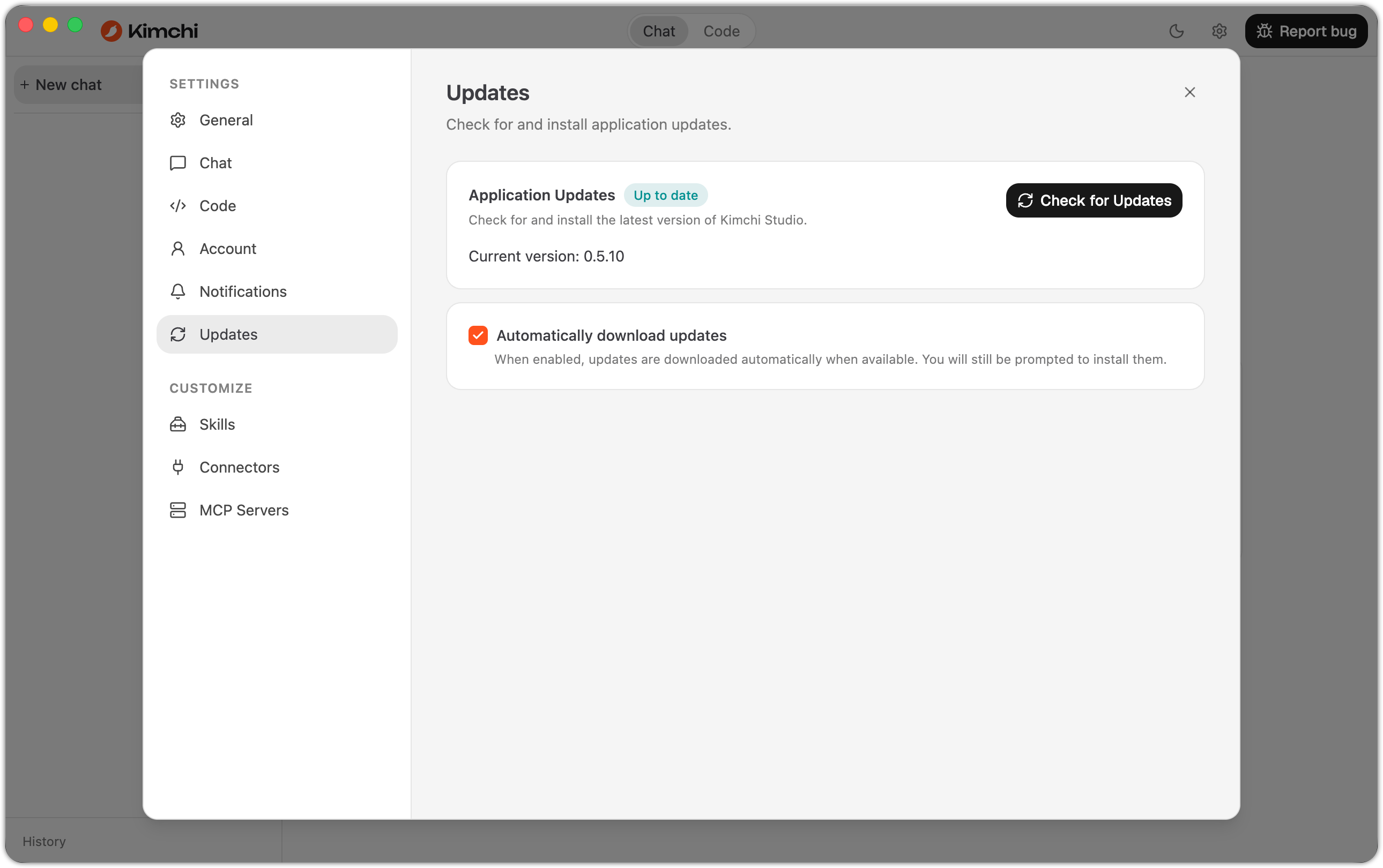
Settings → Updates: the current app version, the Check for updates button, and the automatic-download toggle.
Once a download finishes, the Application Updates card shows an Update downloaded badge and the version you're moving to, and a desktop notification offers to restart right away:
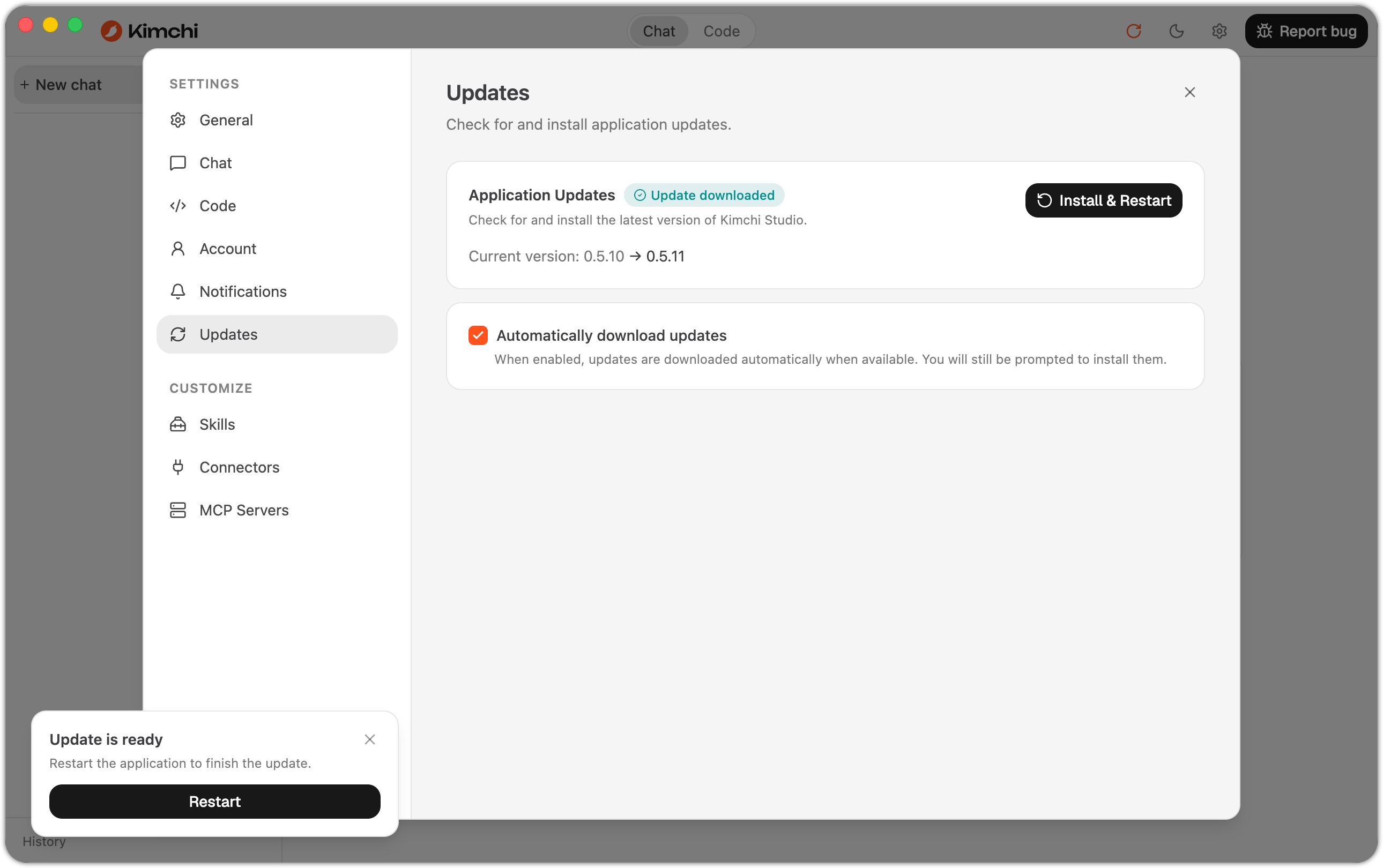
An update downloaded and ready to install: the Update downloaded badge, the version change, and the restart notification.
Click Install & Restart in Settings, or Restart in the notification, to apply it immediately. If you dismiss both, Studio applies the update the next time you quit and reopen the app.
An update won't install
Use Settings → Updates → Check for updates to retry. If it keeps failing, download the latest installer from kimchi.dev and reinstall. Reinstalling preserves your sessions and settings in the data directory. See Uninstall and reset.
Uninstall and reset
Deleting the app does not delete your sessions, settings, or skills. Those live in a separate data directory. To fully reset Studio (for example before a reinstall), quit the app and delete its data directory:
| Item | Location |
|---|---|
App data (sessions, settings, worktrees, artifacts, logs, config.json) | ~/.config/kimchi/desktop/ |
| Harness MCP configuration | ~/.config/kimchi/harness/mcp.json |
| Harness skills | ~/.config/kimchi/harness/skills/ |
Deleting
~/.config/kimchi/desktop/removes your local sessions and worktrees for every project, so commit or discard active sessions first. You lose anything not yet committed to a repository.
Studio shares skills and MCP servers under ~/.config/kimchi/harness/ with the Kimchi TUI and the VS Code extension on the same machine. Delete them only if you want them gone everywhere.
What's next
Updated 6 days ago