

Chat
Chat with the Kimchi agent: bring attachments and files in, stay in control of what it's allowed to change, and keep several conversations going at once.
Chat mode is the everyday, talking-to-an-assistant side of Kimchi Studio. If you've used ChatGPT or Claude Desktop, you already know how to use it. Type what you're thinking about, get a useful reply, and go back and forth. Use it for questions, explanations, planning, drafts, and quick exploratory work. It needs no project or setup.
What makes it more than an ordinary chat assistant is what's underneath: it's the same Kimchi Coding agent that runs in the terminal. It can read and search the files on your machine, and act on them with your approval. It holds onto context across a task instead of chatting in the abstract. You get an approachable conversation, with local, hands-on power there the moment you need it. When you're ready to work on a code repository with diffs and tools side by side, switch to Code mode.
Ask it anything
Write what you want in the chat input at the bottom and send it. There's no command syntax to learn: describe what you're after, and the agent takes it from there. It works in your home directory by default, so you can ask about your own files or about code in general.
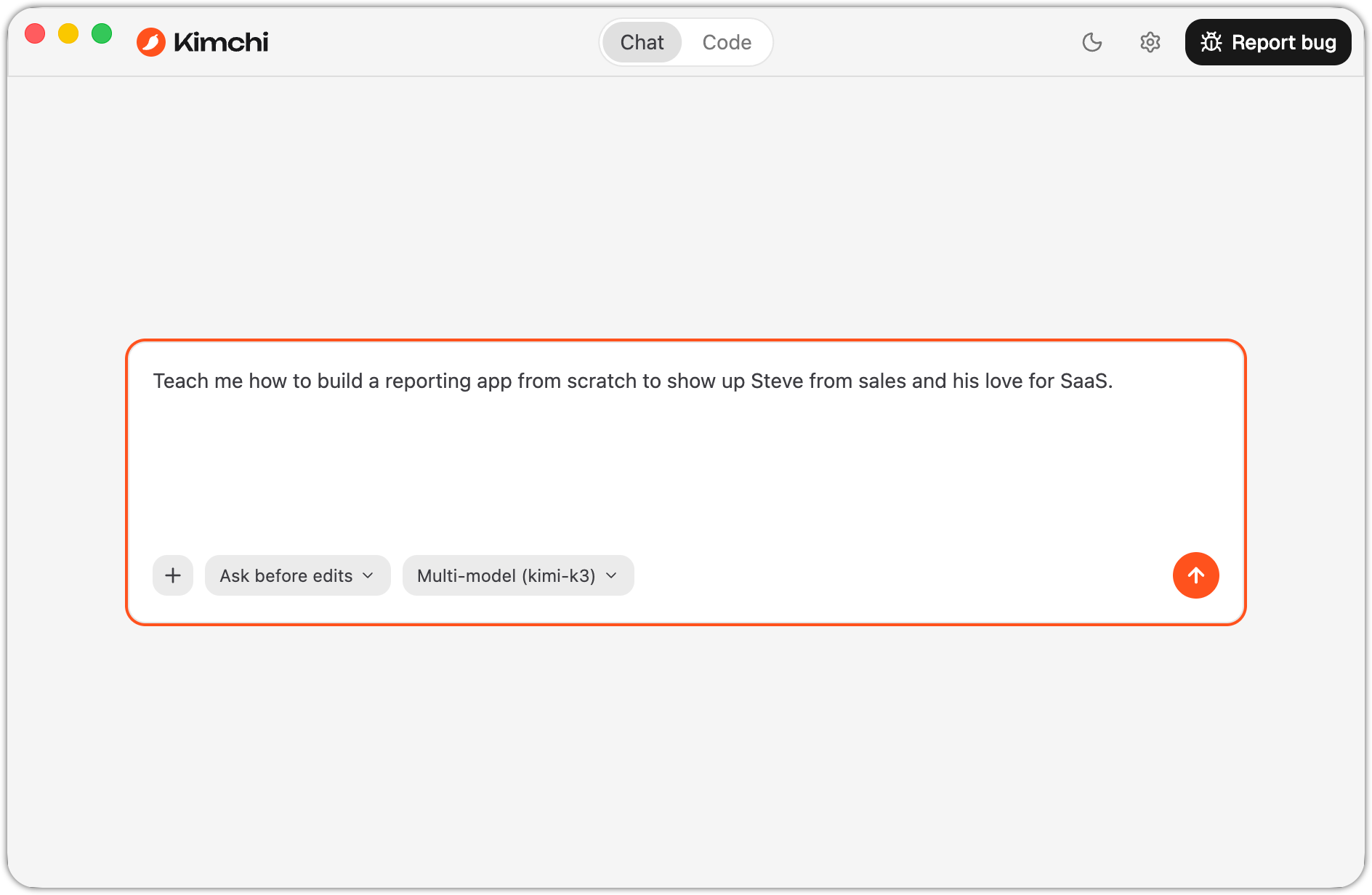
Describe what you want in the chat input — no commands needed.
Bring in files and images
Give the agent something to work with. Type @ to point it at a file, or add any file with the attach button. Everything you add shows up as a chip in the input before you send. This lets you see exactly what the agent is about to get. Pasting a large block of text turns it into a file automatically rather than flooding the chat.
You can also paste an image directly into the input. Pasting other file types doesn't work; use @ or the attach button for those instead.
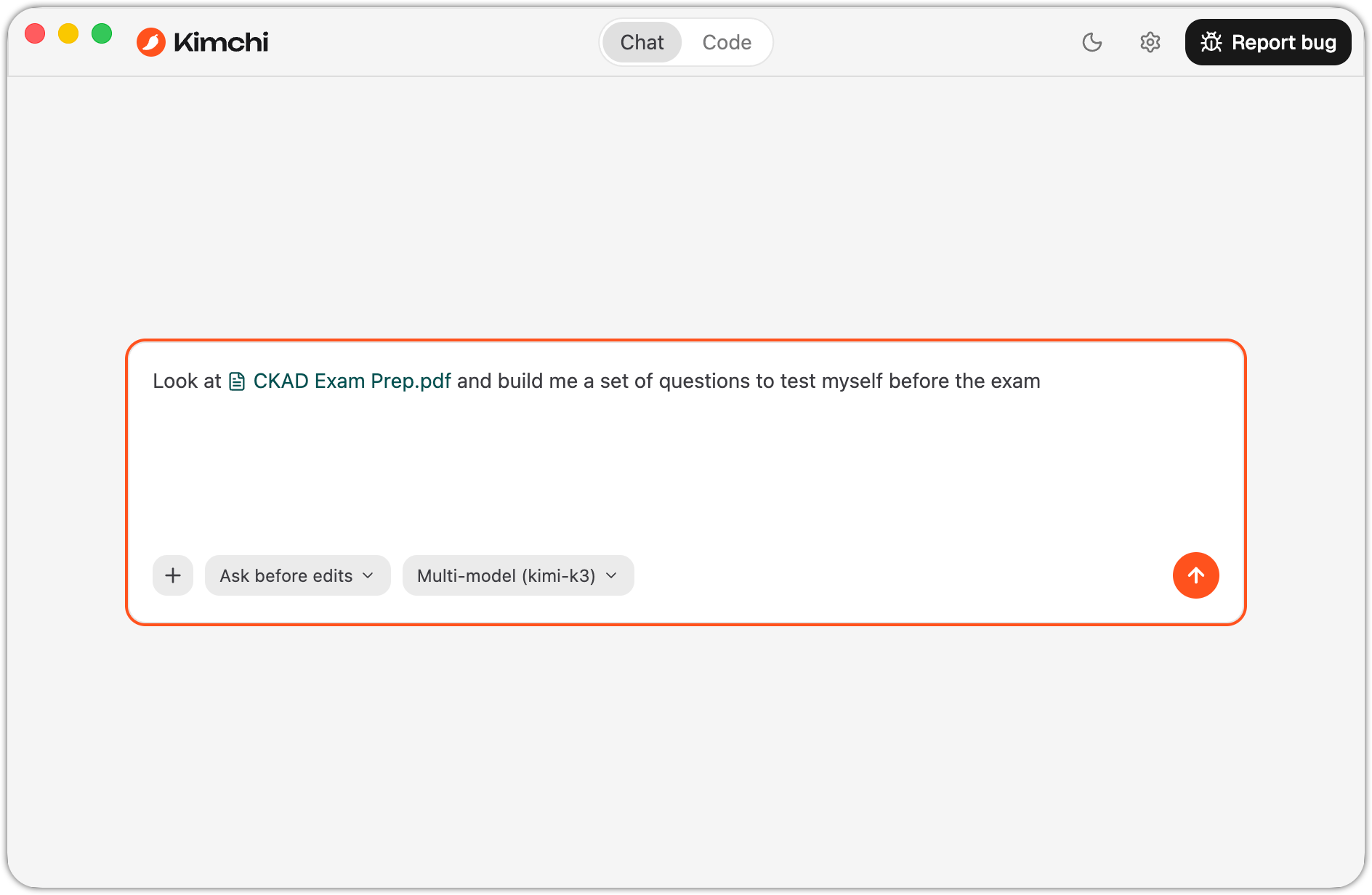
An attached file shown as a chip in the chat input before sending.
Keep several conversations open
Each conversation is its own tab, so you can run several at once and switch between them. The conversation you're using most recently sits at the top of the list in the sidebar.
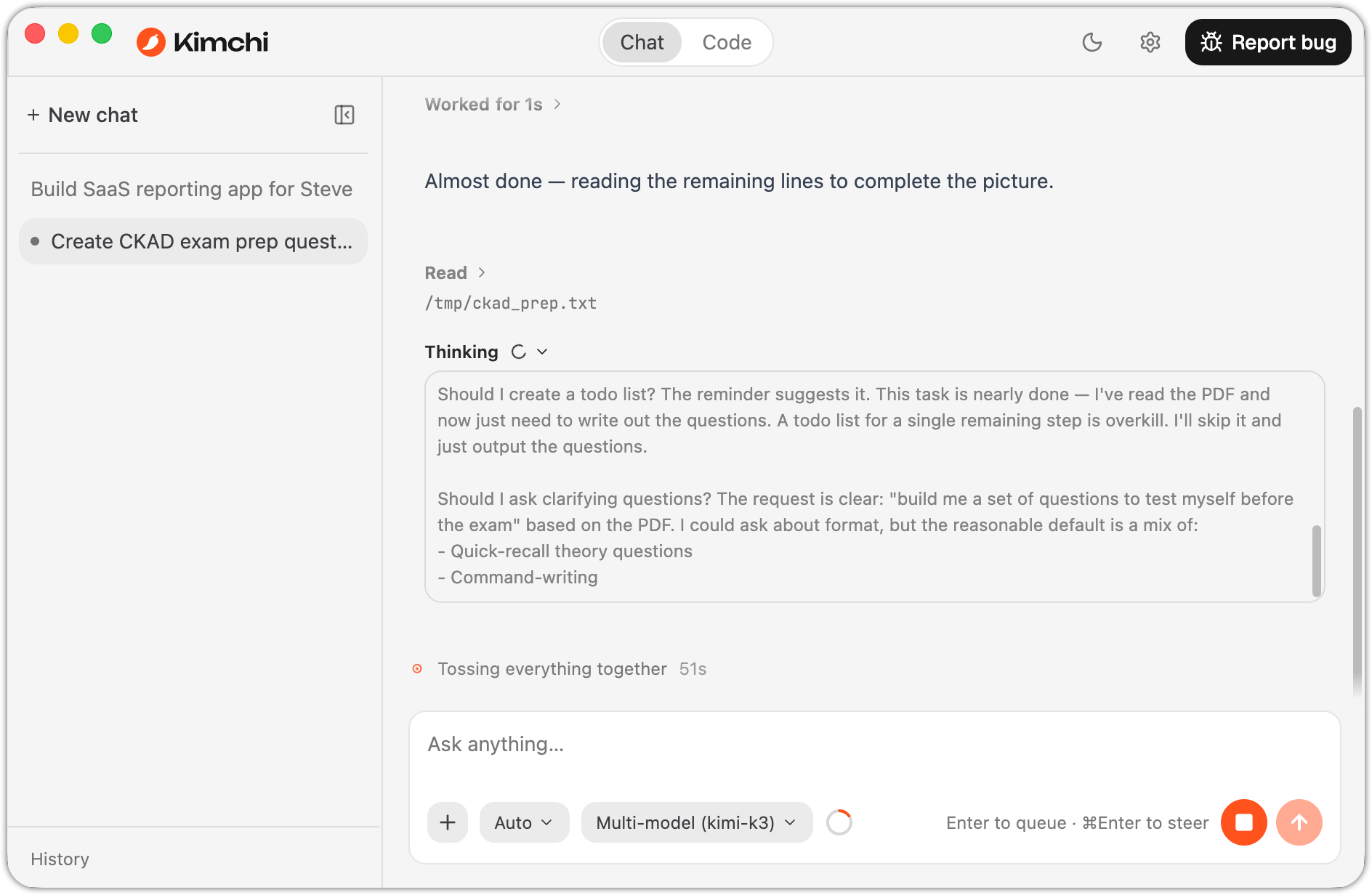
The conversation sidebar, with the two most recent chats listed above the one in progress.
Stay in control of what it changes
The agent doesn't make changes behind your back. Depending on how much freedom you give it, it stops and checks:
- Approve changes first: it asks before it edits a file or runs a command. Nothing happens until you say so.
- It asks when unsure: with more than one reasonable way forward, it asks you to pick, in the conversation.
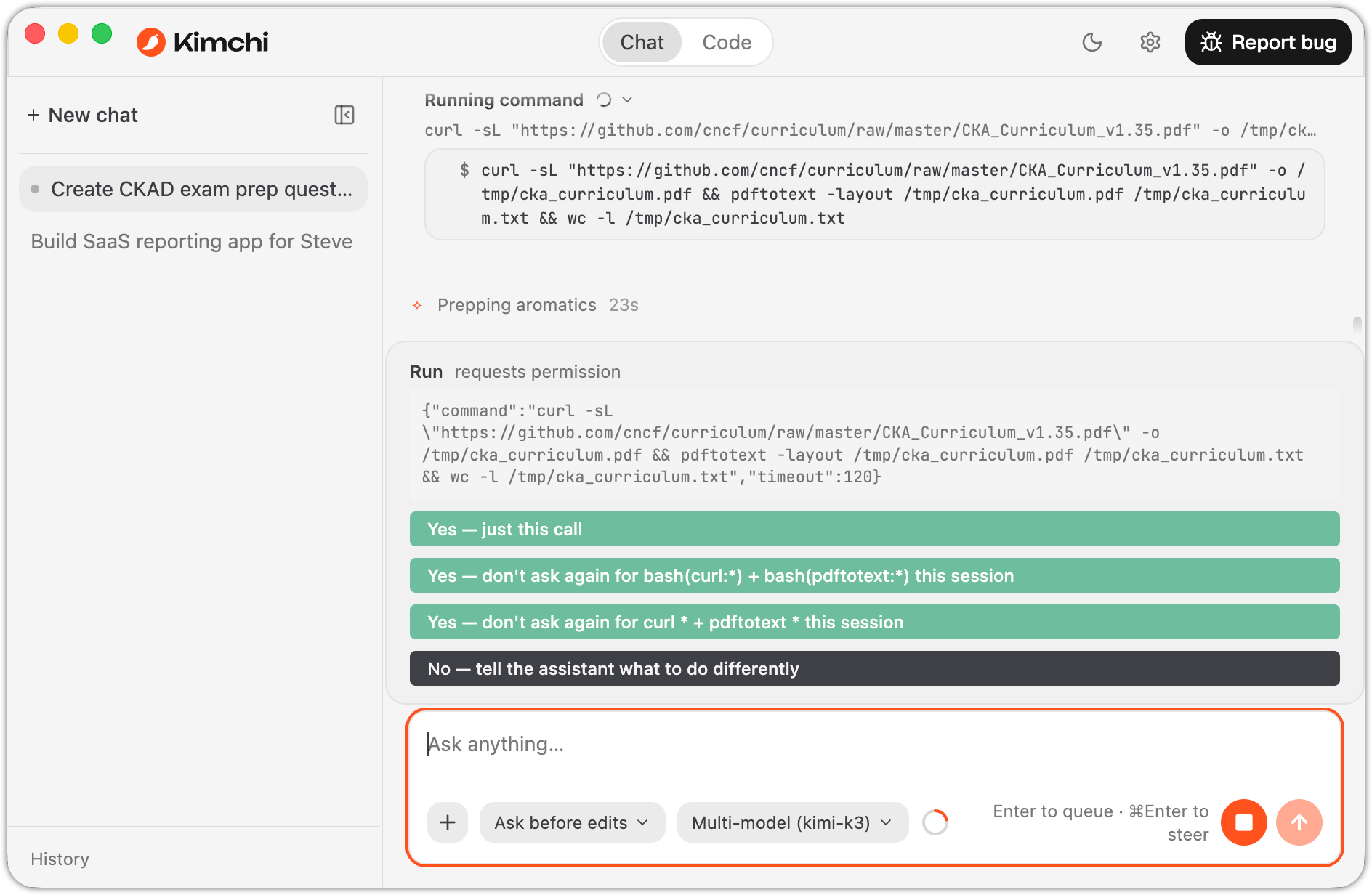
A permission prompt before the agent runs a command, with options to allow once or remember the choice for the session.
Watch it work
As the agent works, its steps and results appear in the conversation as they happen. You see the files it reads, the edits it makes, and the commands it runs. In Plan mode, it writes out its approach first. You read and approve the plan, then it moves ahead.
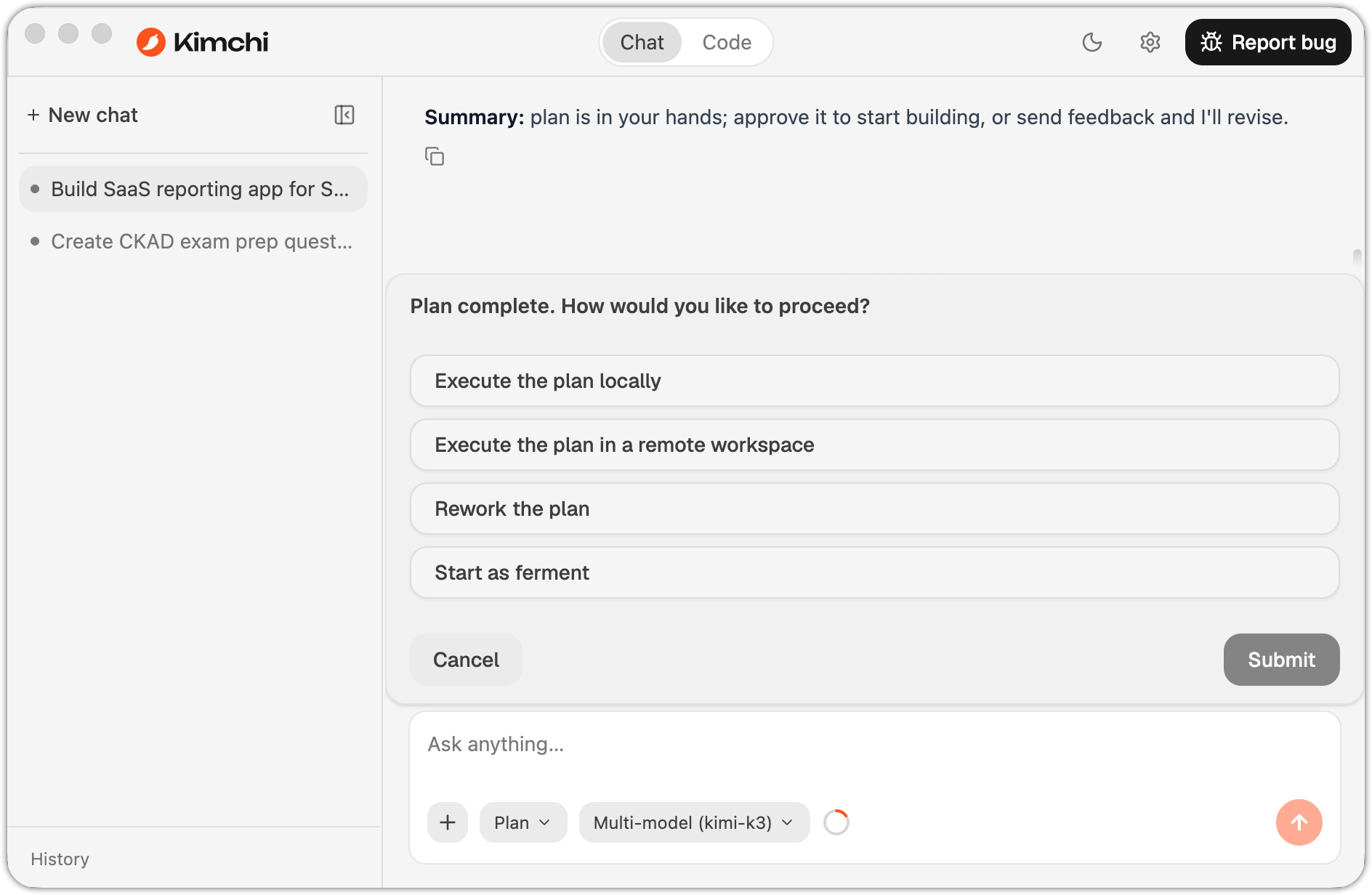
A completed plan, ready to execute, rework, or hand off to a remote workspace.
Pick the model and how much freedom it gets
Two buttons next to the chat input let you tune each conversation:
- Model: choose which model the agent uses. In Code mode, the Auto (Kimchi Router) option assigns each part of the task to a suitable model automatically.
- Permission mode: how much the agent can do before it checks with you:
| Mode | What it does |
|---|---|
| Ask before edits (default) | Asks you to approve every file change before making it |
| Plan | Thinks and plans without changing anything |
| Auto | Works on its own, only stopping for the risky steps |
| YOLO | Doesn't ask at all; only for low-risk tasks you don't mind handing over completely |
A rough guide:
-
Plan when you're figuring something out or want to see the approach first.
-
Ask before edits to watch and approve each change.
-
Auto for routine work.
-
YOLO only for throwaway tasks where a mistake costs nothing, or for any task running in a sandboxed environment where nothing on the host machine is at risk. Never use it for anything touching production, credentials, or files you can't afford to lose.
Set the default under Settings → Chat and change it per conversation at any time.
YOLO mode lets the agent make any change without asking. Use it for low-risk tasks you're happy to hand over completely, such as drafts, exploratory changes, and throwaway experiments. Don't use it for work touching production systems, credentials, or files you can't afford to lose.
What's next
Updated 6 days ago