

VS Code Extension
Use the Kimchi VS Code extension for an editor-integrated coding experience — side panel chat, streaming responses, multi-model support, and agentic tool use.
The Kimchi VS Code extension brings the full Kimchi Coding experience into your editor as a side panel. It uses the same harness that powers the Kimchi TUI (model orchestration, tool use, and session management) with an editor-native UI on top.
The extension runs the Kimchi TUI in the background. Most of what you can do in the terminal works from the side panel, though some TUI features like Ferment and /compact are not yet available in the extension.
Prerequisites
- Kimchi TUI installed and authenticated. The extension spawns the TUI process in the background, so a working
kimchilogin is required. See the Quickstart if you haven't set it up yet.
Getting started
Install the extension
Open VS Code and go to the Extensions view (Ctrl+Shift+X / Cmd+Shift+X).
Search for Kimchi and click Install.
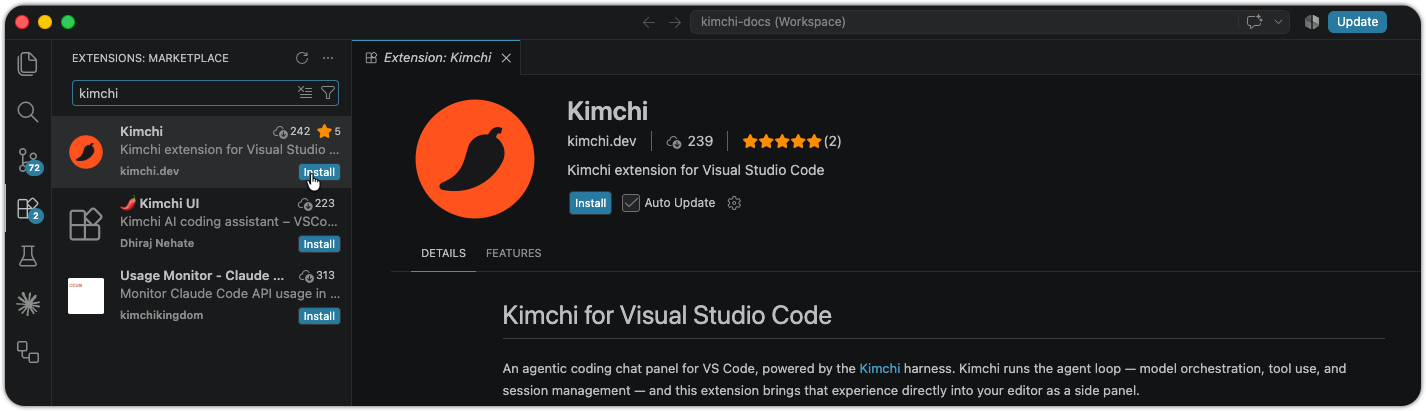
You can also install directly from the VS Code Marketplace.
Start chatting
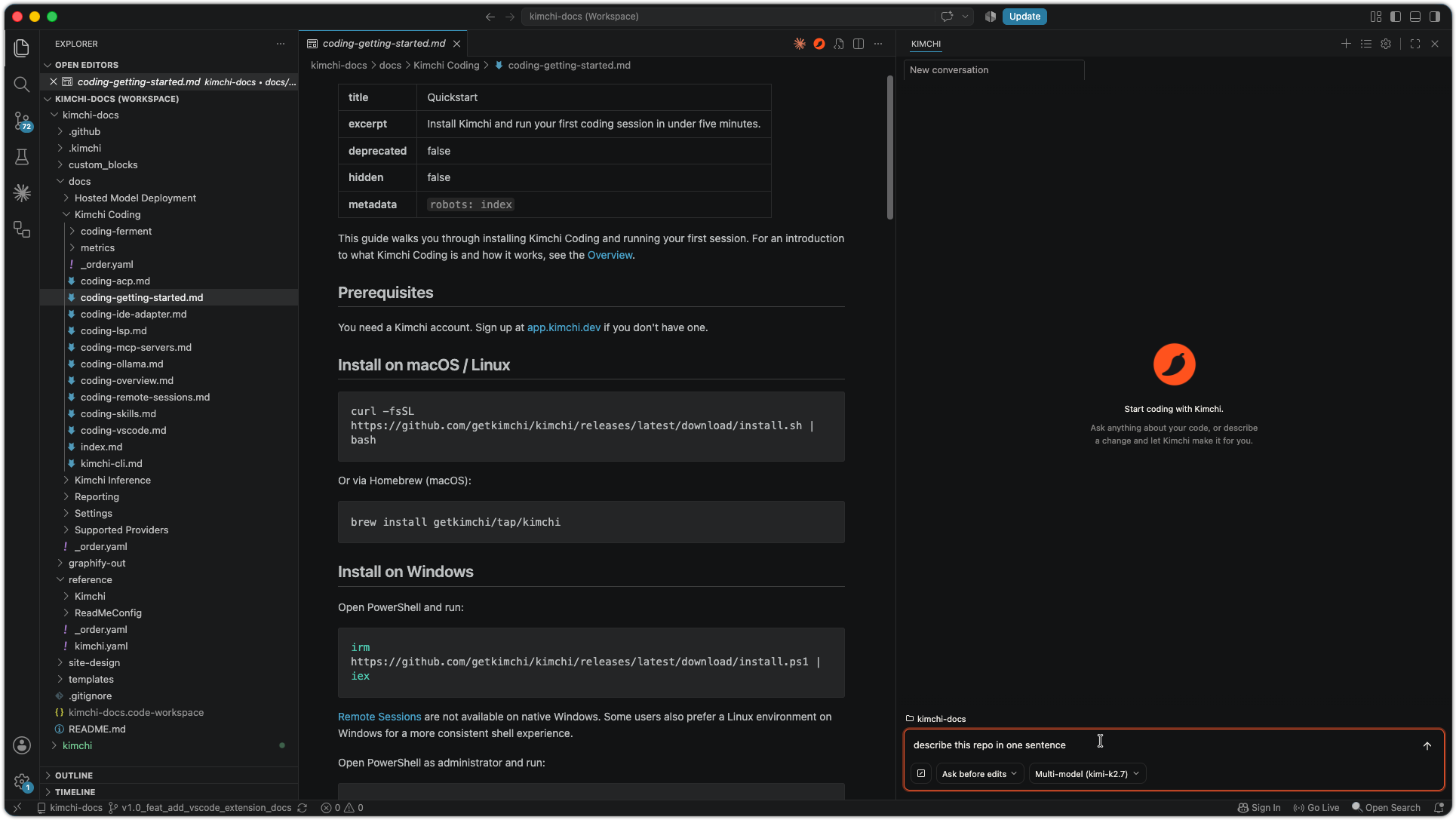
Click the Kimchi icon in the activity bar to open the side panel. Start a new chat and begin coding — the agent runs in your workspace with the tools and context of the Kimchi harness.
Features
Side panel chat
The Kimchi panel lives in the activity bar, always one click away. Unlike terminal-based workflows, where the agent runs in a separate window, the panel sits alongside your editor — you can read agent output and your code side by side without switching contexts.
Streaming responses
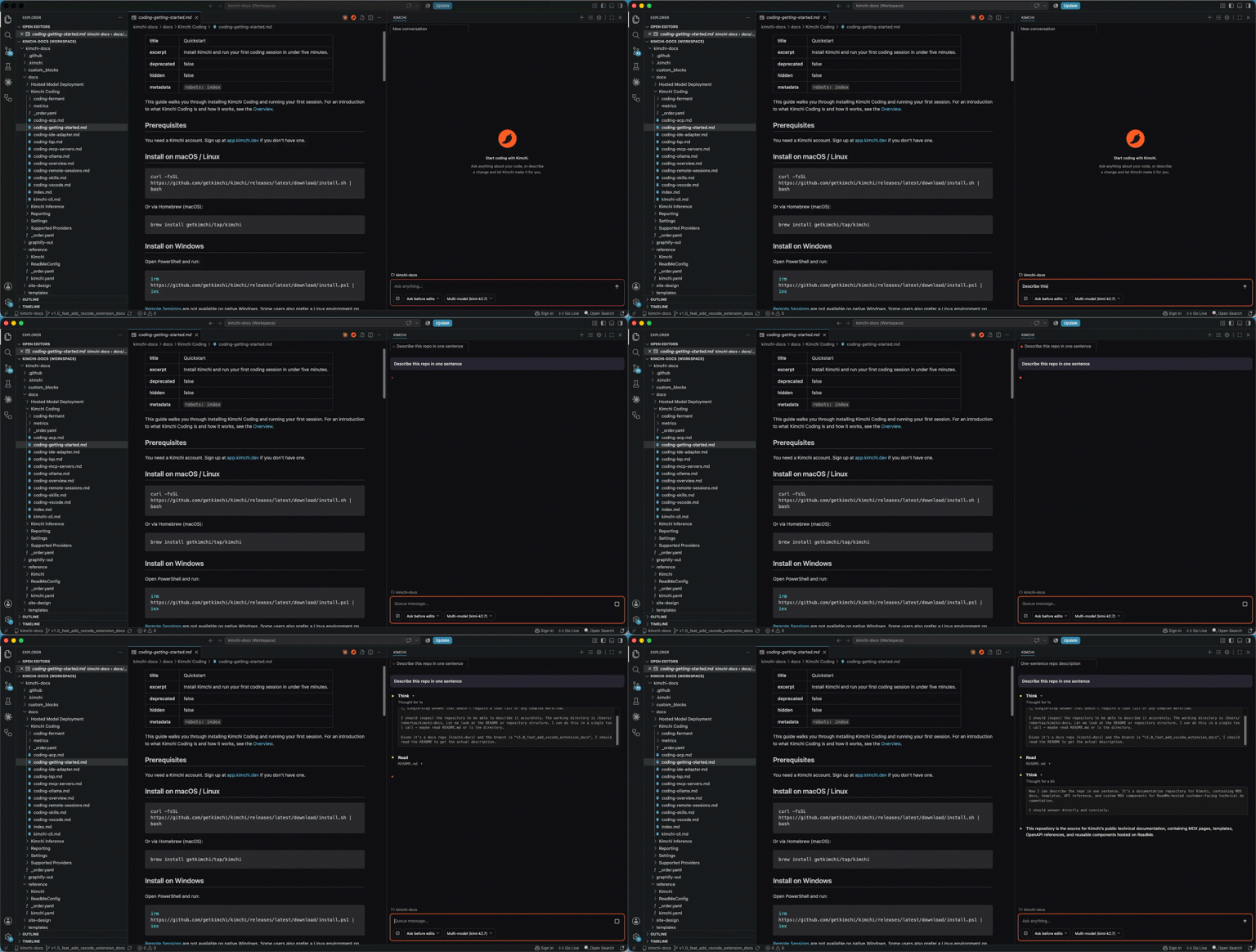
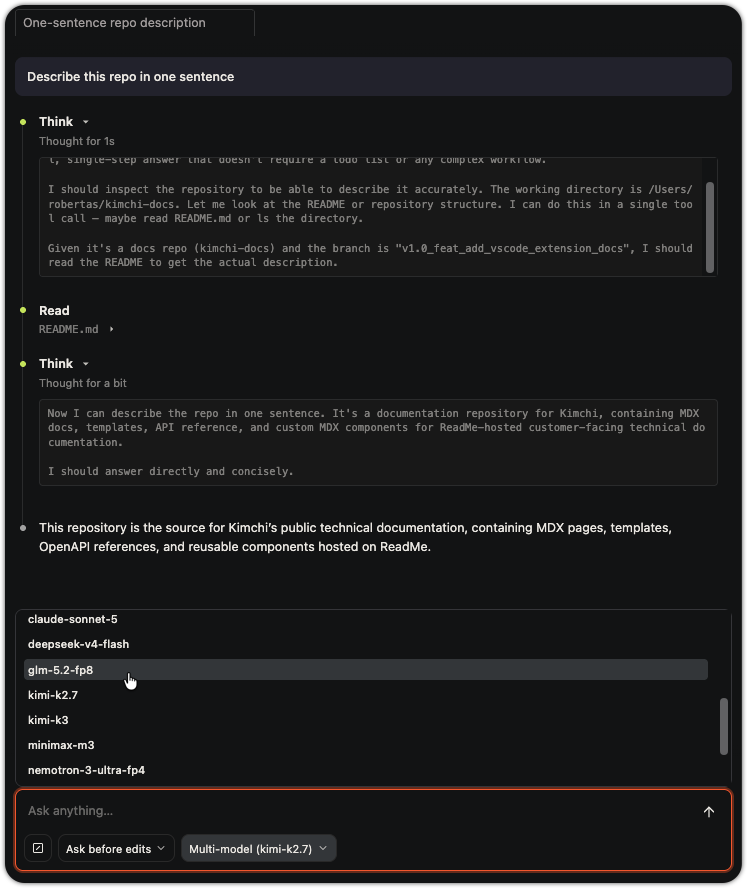
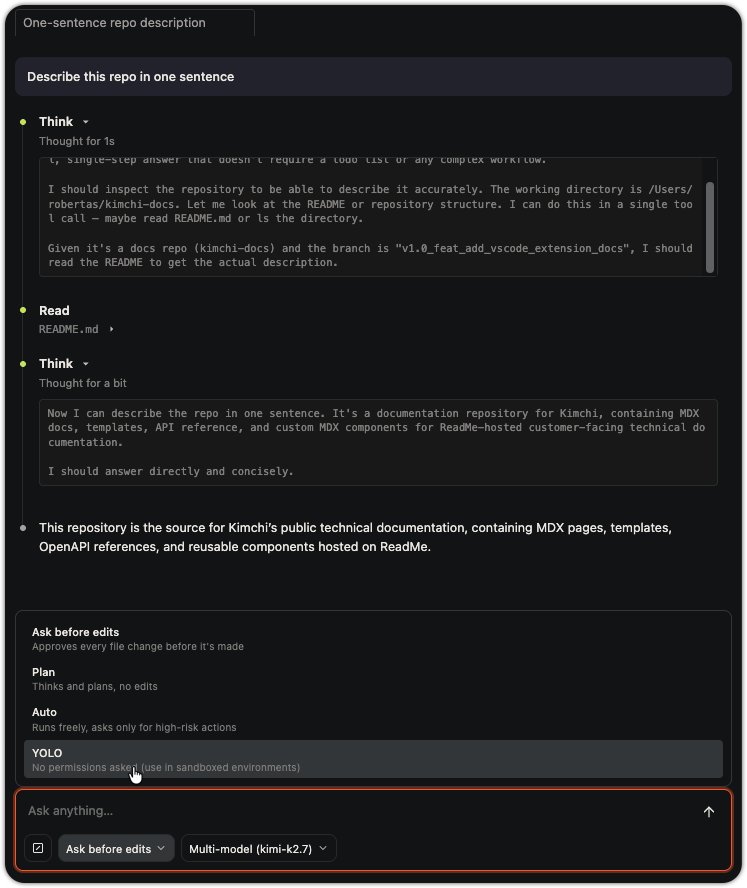
Output streams tokens as the agent works, so you can see its reasoning and code in real time. If you've used the Kimchi TUI, this is the same streaming experience, just rendered in the editor instead of the terminal.
Agentic tool use
The agent reads and writes files, runs shell commands, lists directories, and searches your workspace — the full tool set of the Kimchi harness. Edits apply directly to your workspace files, so VS Code's diff view, git integration, and undo history all work as expected.
Tool approval
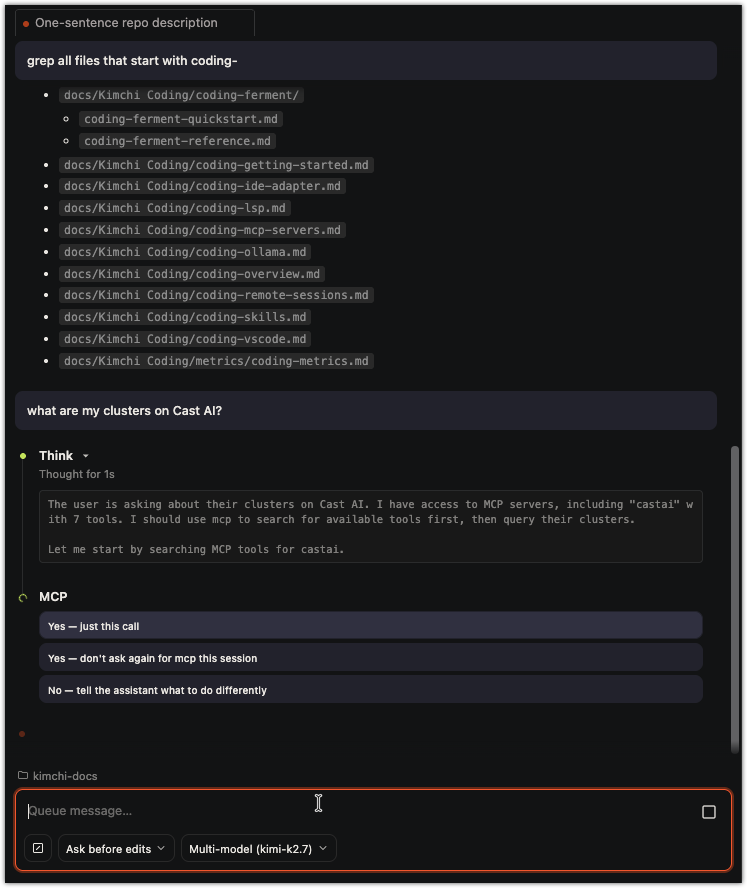
Control how much autonomy the agent has over tool calls. Choose between approve all (every action requires confirmation), write only (reads run automatically, writes prompt), or auto (safe operations run freely, destructive ones prompt). This is the same gating model as the CLI's permission modes, surfaced as a panel control.
Tabbed conversations
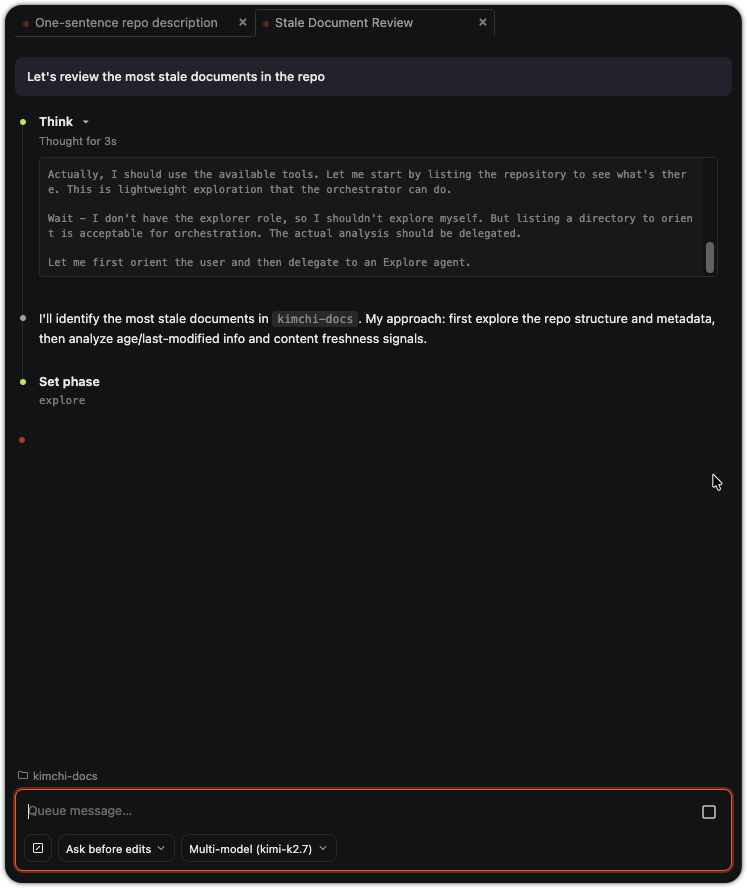
Run multiple conversations in parallel, each in its own tab. Conversations persist across VS Code restarts, and you can rename or delete them from the tab bar. This is useful when you're working on several tasks at once — one tab for a refactor, another for writing tests, a third for exploring an unfamiliar module.
File attachments and mentions
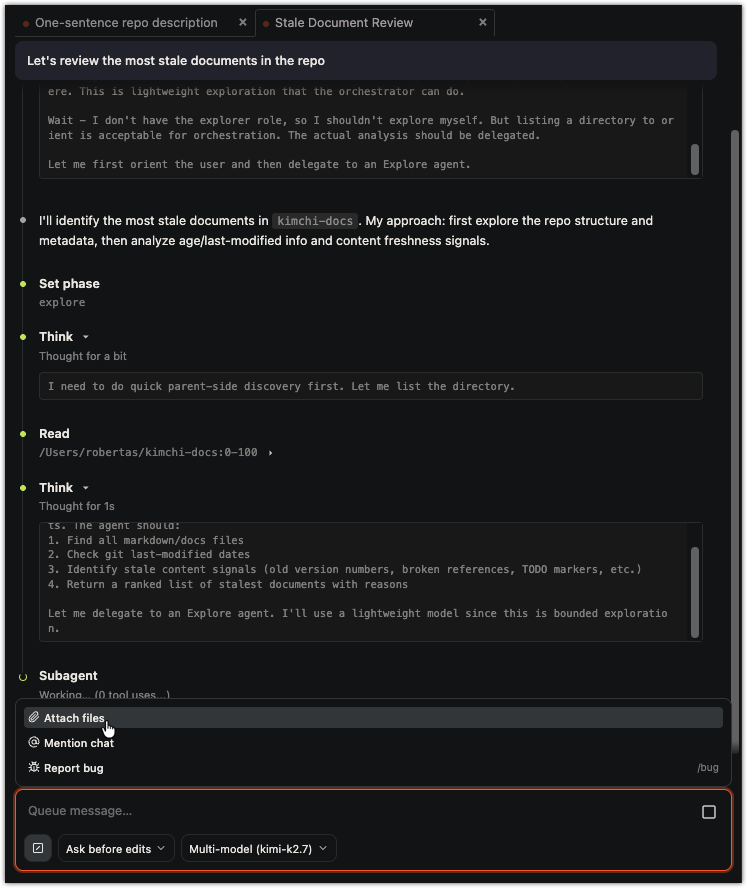
Attach a file or your current editor selection to any message — the agent receives the full content as context. You can also reference files inline with @ mentions, similar to how you'd use @/path/to/file in the CLI. Both approaches give the agent targeted context without you needing to describe what to look at.
Choice prompts
When the agent needs clarification — for example, choosing between two approaches to a refactor — it presents clickable options directly in the chat. Instead of typing your answer, you click the option you want. This replaces the numbered-choice flow you'd see in the CLI's terminal UI.
Rich output
Agent responses render with full Markdown support — code blocks with syntax highlighting, tables, task lists, headings, and horizontal rules. Code blocks include Copy and Insert actions: copy sends the snippet to your clipboard, and insert places it directly into your active editor at the cursor position.
Configuration
The extension works out of the box with no additional configuration. For advanced use cases, you can customize the executable path, environment variables, and debug logging.
Config file
The extension reads its configuration from ~/.config/kimchi/vscode/config.json (macOS/Linux), created automatically on first run. To locate the file on any platform, run Kimchi: Open Configuration from the Command Palette. You can optionally configure the executable path and environment variables:
{
  "kimchi": {
    "env": {
      "KIMCHI_TAGS": "team:your-team",
      "KIMCHI_PERMISSIONS": "default"
    },
    "executablePath": "$HOME/.local/bin/kimchi"
  }
}
To use a config file in a different location, set the kimchi.configPath VS Code setting.
VS Code settings
| Setting | Type | Default | Description |
|---|---|---|---|
kimchi.configPath | string | "" | Absolute path to the Kimchi JSON config file. If empty, uses ~/.config/kimchi/vscode/config.json. |
Config file fields
| Field | Type | Description |
|---|---|---|
kimchi.args | object | Extra command-line arguments passed to the Kimchi process (e.g. {"--tag": "team:backend"}). |
kimchi.env | object | Extra environment variables for the Kimchi process (e.g. KIMCHI_TAGS). |
kimchi.executablePath | string | Optional path to the kimchi executable (supports $HOME expansion). |
debug | boolean | Enable debug logging (default false). Raw responses go to the Kimchi output channel. |
Commands
Open the Command Palette (Cmd/Ctrl+Shift+P) and search for Kimchi:
| Command | Action |
|---|---|
| Kimchi: Focus Chat | Focus the Kimchi side panel |
| Kimchi: New Chat | Start a new conversation |
| Kimchi: Open Chat List | Show the conversation list |
| Kimchi: Open Configuration | Open the config file in the editor |
| Kimchi: Attach File to Chat | Attach a file from the Explorer or editor |
| Kimchi: Attach Selection to Chat | Attach the active editor selection |
| Kimchi: Next Tab | Switch to the next conversation tab |
| Kimchi: Previous Tab | Switch to the previous conversation tab |
Keyboard shortcuts
| Shortcut | Action |
|---|---|
Cmd/Ctrl+Shift+K | New chat |
Ctrl+Tab | Next conversation tab |
Ctrl+Shift+Tab | Previous conversation tab |
Enter | Send message |
Shift+Enter | New line |
Feedback & issues
Click Report bug from the actions dropdown in the side panel, use the /bug command, or file issues at github.com/getkimchi/kimchi.
See also
Updated 14 days ago