

Connect Connectors in Kimchi Studio
Connect the connectors Kimchi Studio offers, curated ones like Slack and Atlassian Rovo or ones your organization provides, with a guided sign-in flow.
Kimchi Studio's Connectors tab holds two kinds of connectors: the curated catalog Studio ships, and connectors your organization provides. The curated catalog includes services like Slack, Atlassian Rovo, Granola, Pylon, and Cast AI. Both kinds work the same way: connect from the card, sign in when the service asks, and the tools are live. What differs is who controls the list. Curated connectors come from what Studio ships; your organization's admins manage its list on the console's Connections page.
The curated connectors run on a Node.js runtime bundled with Kimchi Studio. You do not need Node.js or anything else installed on your machine.
Connect a connector
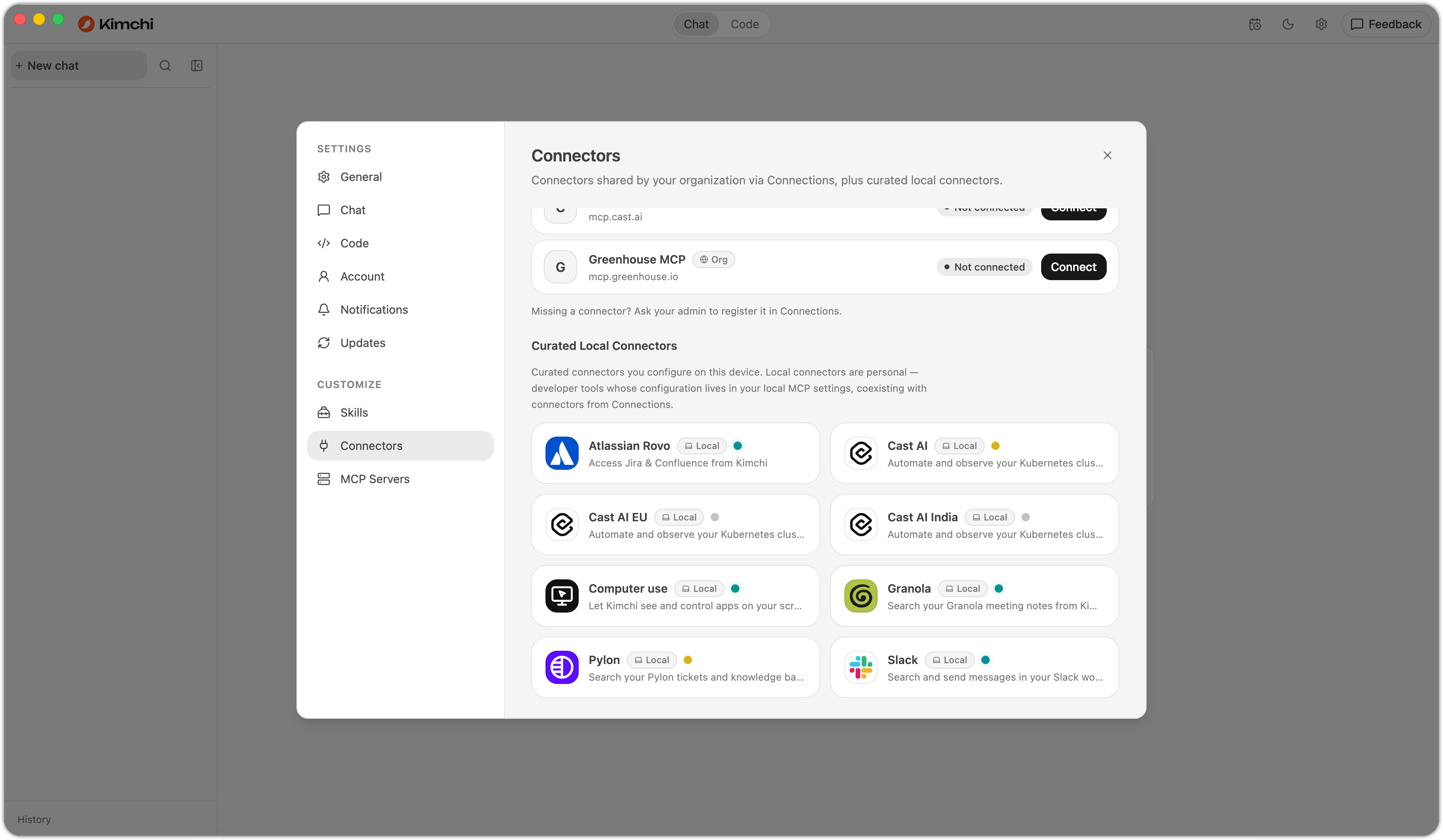
Settings → Connectors.
Open Connectors settings
In Kimchi Studio, open Settings → Connectors. The grid shows every connector in the catalog with its current status.
Select the connector
Click a connector card to open its detail view. Read the description and the Setup note on curated cards that have one. For example, the Computer use connector asks for macOS Accessibility permission when you first use it.
Click Connect
Studio saves the connector's configuration and restarts the agent. On curated connectors, the status badge moves through Adding…, Restarting…, and Connecting…. If the agent is in the middle of a task, the badge shows Restart pending until the task finishes.
Authorize in your browser, if prompted
If the connector requires a sign-in, your browser opens the provider's authorization page while the badge shows Authenticating…. Sign in and approve access, then return to Kimchi Studio.
Verify the connection
When the status badge shows Connected, the connector is live and the detail view lists its tools for your agents to use.
The detail view before and after connecting, with Atlassian Rovo as the example:
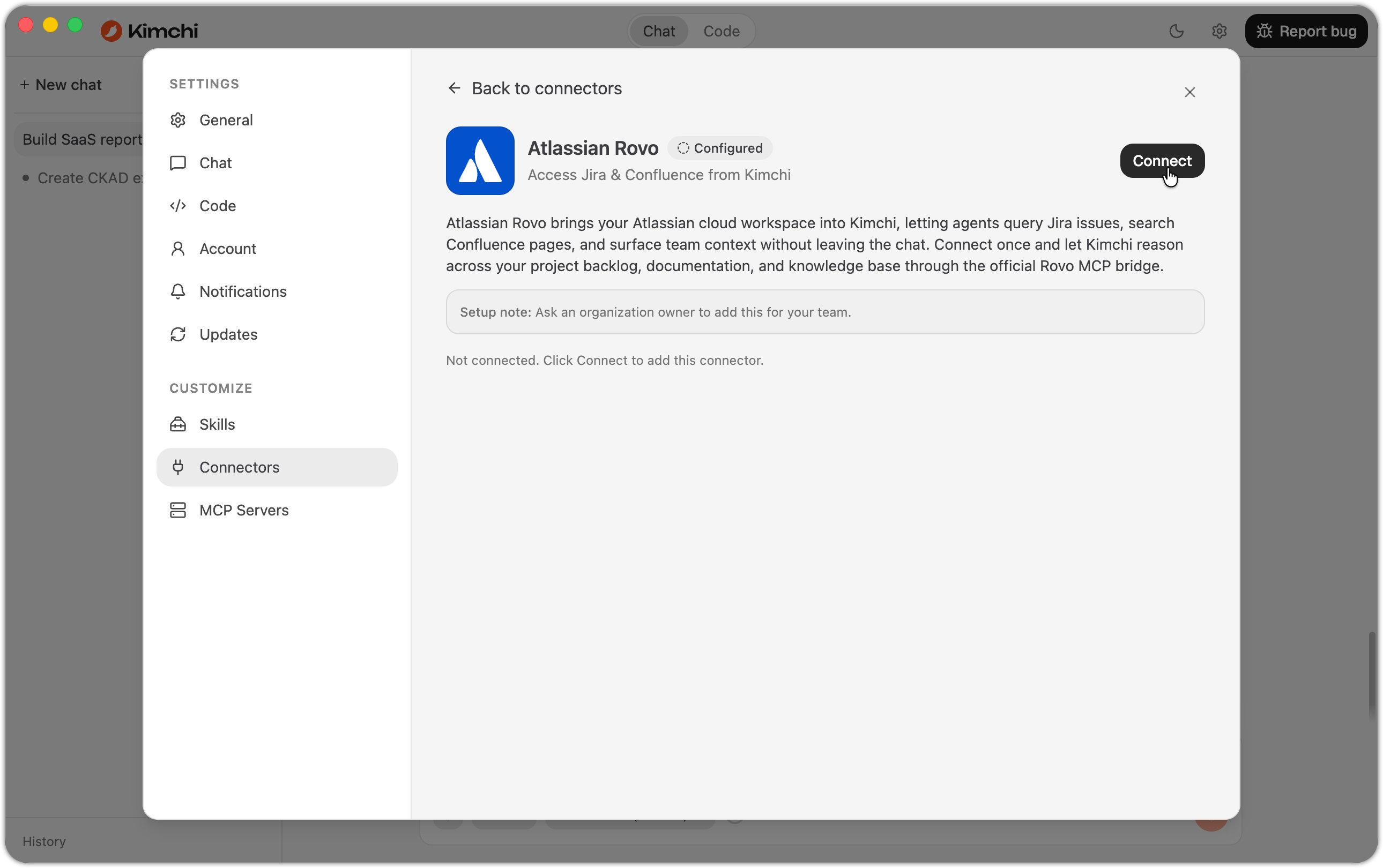
The Atlassian Rovo connector before connecting.
Disconnect a connector
- Open Settings → Connectors and select the connected connector.
- Click Disconnect and confirm in the dialog.
Disconnecting removes the connector from your MCP configuration and restarts the agent. Studio then clears what the connector stored on your machine, such as a cached data directory, a stored token, or the saved sign-in grant. Studio keeps nothing for the next sign-in: your next connect starts a fresh authorization.
For a connector from your organization, disconnecting removes only your own connection. Your organization keeps offering the connector, other members keep their connections, and nothing changes on the Connections page. If you connected several connectors through the same provider sign-in, Studio signs you out of all of them.
Connectors from your organization
Organization owners manage the list of organization connectors on the console's Connections page; you cannot add or remove them from Studio. If one is missing or looks wrong, ask the person who manages the Connections page for your organization. Connecting is per person: you sign in with your own account, Connections authenticates to each server on your behalf, and Studio never displays your credentials.
Each organization connector row carries a status pill describing your own connection, not the organization's setup:
- Connected: your sign-in is valid and the tools are live.
- Needs re-auth: your sign-in expired or was revoked. Click Re-auth and sign in again.
- Not connected: you have not signed in to this connector yet.
- Connection issue: the last status check failed. Click Retry to check again.
Studio reads the organization's list with your Kimchi API key. Without a valid organization-scoped key, the section shows what is wrong instead of the list. Studio reaches your organization's connectors through one gateway connection that it manages for you.
Connectors vs. custom MCP servers
Curated connectors, organization connectors, and custom MCP servers all end up in the same MCP configuration, but you manage them in different places:
- Connectors appear only in the Connectors tab. The MCP Servers list hides them.
- Only connectors Kimchi ships appear in the curated catalog. To add any other MCP server, see Add an MCP server in Kimchi Studio.
Next steps
Updated 5 days ago